Boring Sysadmin task, only do if absolutely necessary. It will demotivate you.
Check file or folder permissions
{bash} ls -l
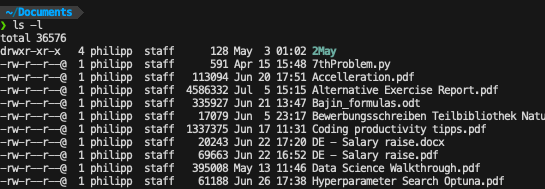
let's explain the second line in more details (7thProblem.py)
-rw-r--r--: file permission string:
-: first character-indicates the type of file. A minus for regular files, d for folderrw-: next three characters are the owners permissions, rwx, "read, write, execute". Here the owner (philipp) is only allowed to read and write, not to execute the file.r--: The group permissions: read, not write, not execute.r--: The permissions for everyone else.
1: The number indicates the amount of hard links towards that file.
philipp: Owner of the file/directory
staff: Group name that owns the file/directory
591: Size of the file in Bytes.
Apr 15 15:48: Date the file was last modified
7thProblem.py: File name
Modify owners
{shell}chown stands for "change owner"
modify the owner of a file
{shell} chown userName fileName
modify the group that owns a file
{shell} chown :groupName filename
{shell} chown userName:groupName fileName
{shell} chown -R userName:groupName folderName
Modify permissions
{shell} chmod permissions resource-name
example:
{shell} chmod 740 fileName
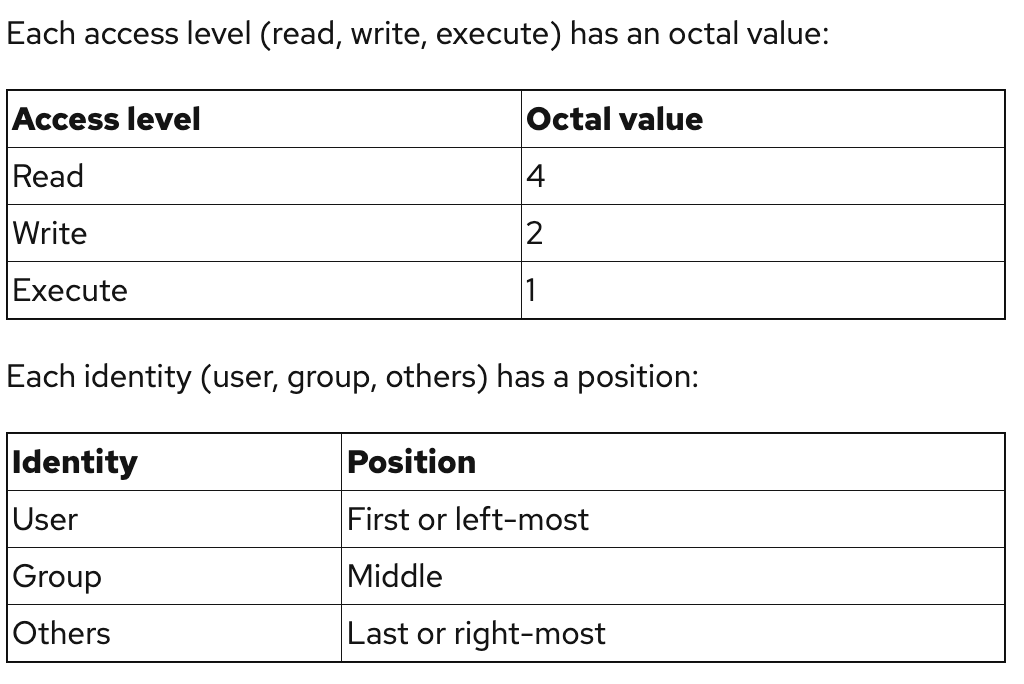
You simply add the numbers together to give permissions. 4: read, 6: read + write, 7: read + write and execute
If this is too complex you can also use this:
{shell} chmod u=rwx,g=r,o-rwx fileName
Other:
List all users and their groups:
{shell} less /etc/passwd